
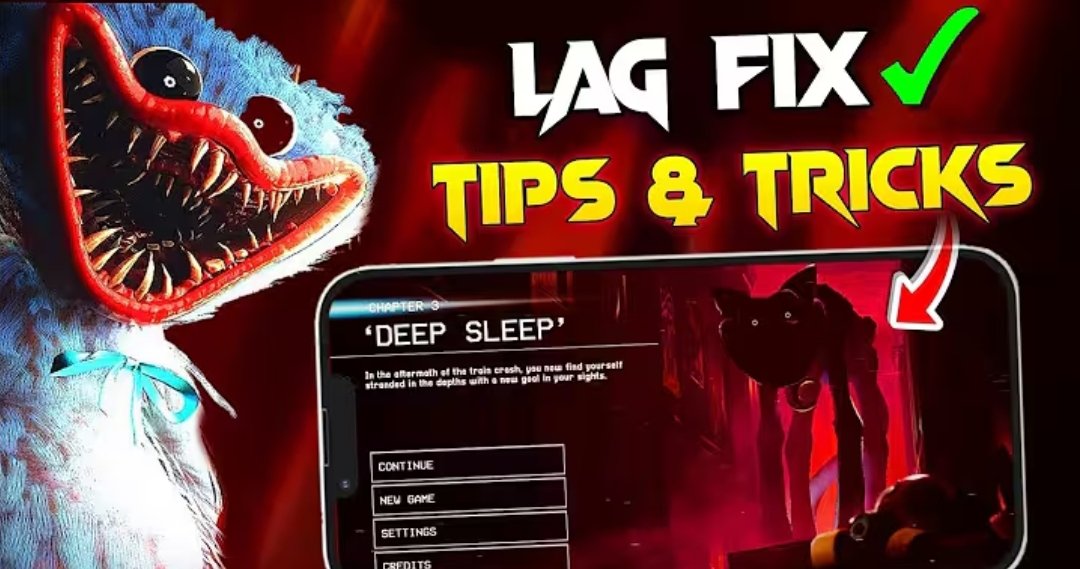
How to Fix Lag in Poppy Playtime Chapter 3 on Mobile
Poppy Playtime Chapter 3 is one of the more demanding games in the series, especially on Android phones with limited hardware. If you are experiencing FPS drops, stuttering, overheating, or delayed controls while playing Chapter 3 on mobile, there are several things you can try before giving up.
The official Android listing for Poppy Playtime Chapter 3 recommends devices with at least 6 GB of RAM and a relatively powerful octa-core processor. Mob Entertainment also warns that lower-end devices may experience technical problems or may not support the game properly.
Here are some practical ways to reduce lag.
1. Lower the Graphics Settings
The first thing to try is lowering the game’s graphics settings.
If your version of Chapter 3 provides graphics options, start with:
- Low graphics quality
- Lower resolution, if available
- Lower shadow quality
- Lower effects quality
- Lower texture quality
- Disable unnecessary visual effects
Chapter 3 contains larger environments and more detailed visuals than earlier chapters, so reducing graphical load can make a noticeable difference on weaker phones.
2. Close Background Apps
Before launching the game, close apps running in the background.
Social media apps, browsers, video editors, and other games can use RAM and CPU resources. Having fewer applications running can leave more resources available for Poppy Playtime Chapter 3.
You can also restart your phone before playing if the device has been running for a long time.
3. Keep Enough Free Storage
A phone that is almost completely full can have a harder time managing games and temporary files.
Try to keep some free storage available. Remove unnecessary downloads, duplicate videos, and unused applications if your storage is nearly full.
Do not delete important game files manually.
4. Avoid Playing While the Phone Is Very Hot
Heat can cause a phone to reduce its performance to protect the hardware.
If your phone becomes very hot while playing, stop for a while and let it cool down naturally. Avoid covering the phone with blankets or other materials while playing.
Playing in a cooler environment can also help maintain more consistent performance.

5. Use a Stable Performance Mode
Some Android phones include a built-in gaming or performance mode.
If your phone has one, you can check its settings and choose the normal gaming/performance option. The exact name and available options depend on the manufacturer.
Avoid installing random “RAM booster” or “FPS booster” applications. Many of them provide little real benefit and can consume additional resources themselves.
6. Keep Android and the Game Updated
Check whether your phone has a pending system update and make sure you are running the latest available version of the game from the official store.
Updates can contain bug fixes and performance improvements.
For Android, the official Google Play listing currently identifies Android SDK 30 or higher as part of the supported-device requirements.
7. Check Your Phone’s Hardware
Sometimes there is no setting that can completely remove lag.
The official Android requirements list at least:
- Android SDK 30+
- 6 GB RAM+
- An octa-core CPU meeting the listed performance level
Mob Entertainment specifically notes that lower-end devices can experience technical issues.
This is important because lowering graphics settings cannot turn an unsupported or underpowered phone into a high-performance gaming device.
8. Try a Different Area of the Game
If the game runs smoothly in some locations but suddenly becomes much slower in others, the problem may be related to the game’s workload in that particular area.
Players have reported frame-rate drops in certain sections of Chapter 3, including situations where performance changes significantly between different areas.
In that situation, lowering settings and keeping the phone cool may help, but some performance problems may require an update from the developer.
9. Don’t Expect Every Phone to Run Chapter 3 Smoothly
This is probably the most important point.
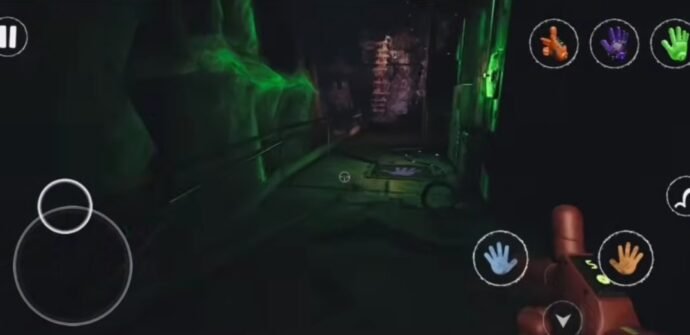
Poppy Playtime Chapter 3 is considerably more demanding than a simple mobile game. If your phone has limited RAM or a lower-end processor, you may still experience frame drops even after changing every available setting.
The official Google Play listing itself warns that lower-end devices may have technical issues.
Final Thoughts
If Poppy Playtime Chapter 3 is lagging on your phone, start by lowering the graphics settings, closing background applications, freeing some storage, restarting the device, and keeping the phone cool.
If those steps do not solve the problem, check whether your device meets the official requirements. On some lower-end devices, there may simply not be enough hardware performance to maintain a consistently smooth frame rate.
Most importantly, avoid unofficial modified versions of the game or random “lag fix” files. Stick with the official version and official updates.
Have you experienced lag in Poppy Playtime Chapter 3 on mobile? Tell us your phone model and which part of the game gives you the biggest FPS drops.