
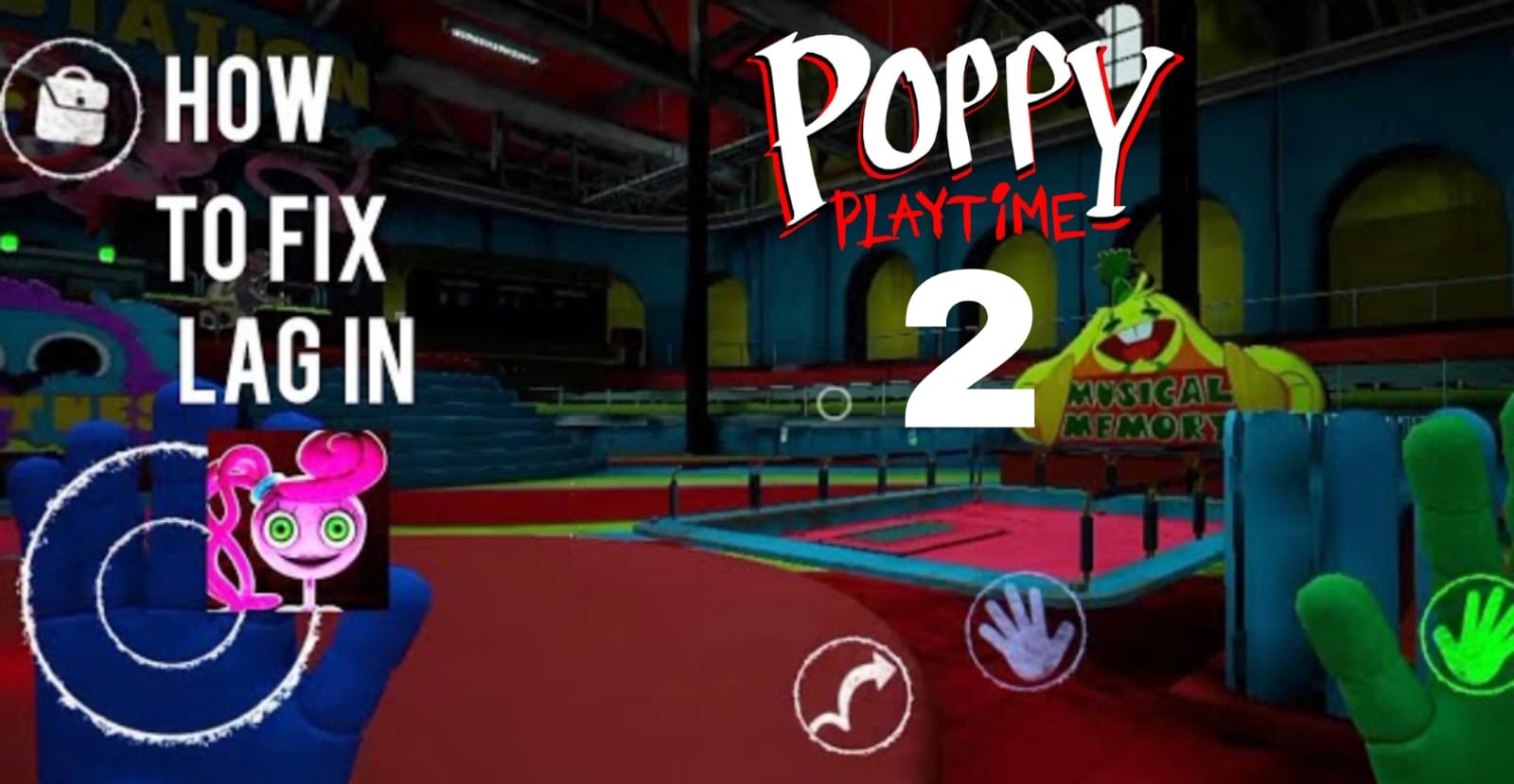
How to Fix Poppy Playtime Chapter 2 Lag on Mobile: Complete Android Performance Guide
Poppy Playtime Chapter 2 can be a demanding game for some Android phones. If you are seeing sudden FPS drops, screen stuttering, delayed controls, long loading times, or crashes, the problem may not have a single cause.
Sometimes the game simply needs lower graphics settings. In other cases, background applications, heat, storage, outdated software, or the phone’s hardware can affect performance.
This guide explains several things you can try to make Poppy Playtime Chapter 2 run better on Android without relying on questionable third-party applications or unofficial game files.
Why Does Poppy Playtime Chapter 2 Lag on Mobile?
There are several possible reasons for poor performance.
Chapter 2 contains detailed environments, character animations, lighting effects, and other visual elements. Rendering all of these things requires work from your phone’s CPU and GPU.
Your phone may also have limited available RAM because other applications are running in the background.
Common reasons for Chapter 2 lag include:
- High graphics settings
- Limited CPU performance
- A weaker GPU
- Low available RAM
- Too many background applications
- Excessive device temperature
- Very little free storage
- An outdated game version
- Android compatibility problems
- Game-specific bugs
The important thing is to identify which situation applies to your phone instead of installing random “lag fix” applications.
Check Your Phone Before Changing Settings
Before spending time changing settings, check your device.
Look at your phone’s:
- RAM
- Processor
- Android version
- Available storage
- Current temperature
- Available system updates
Two Android phones can have completely different gaming performance even if they both have the same amount of RAM.
The processor and GPU are especially important for games because they handle much of the work involved in rendering the game world.
1. Reduce Graphics Quality
One of the first things to try is lowering the game’s visual quality.
If your version of Poppy Playtime Chapter 2 provides graphics options, don’t start with the highest settings.
Instead, test lower options and see how the game responds.
You can try reducing:
- Overall graphics quality
- Resolution
- Shadows
- Effects
- Texture quality
- Other available visual settings
The goal isn’t necessarily to make the game look as simple as possible. Try to find a balance where the game still looks good but your phone doesn’t struggle as much.
After changing the settings, play the same section where you normally experience lag.
That gives you a better comparison than simply changing settings and immediately assuming the problem is fixed.
2. Close Apps Before Playing
Background applications can consume memory and processing resources.
Before opening Chapter 2, close applications that you don’t need.
For example, you might have:
- A web browser
- Social media apps
- A video editor
- Streaming apps
- Messaging apps
- Other games
You don’t need to shut down every system process. Just close unnecessary applications and then launch the game.
This can be especially helpful if your phone has limited RAM.
3. Restart Your Android Phone
A restart is one of the simplest troubleshooting steps, but it is still worth trying.
If your phone has been running for several days without restarting, temporarily cached processes and background activity may affect the overall experience.
Restart your device and then launch Chapter 2 before opening a lot of other applications.
If the game performs better immediately after restarting but becomes slower later, continue reading because temperature and background activity may be contributing to the problem.
4. Keep an Eye on Phone Temperature
Heat is an important factor in mobile gaming.
When a phone becomes very hot, it may reduce performance to control its temperature.
This can result in a game that starts smoothly but becomes increasingly sluggish during a long session.
If you notice this pattern, let the phone cool down naturally.
Try to:
- Play in a cool environment
- Avoid direct sunlight
- Remove anything that blocks normal ventilation
- Take breaks during long sessions
Don’t use extreme or unsafe cooling methods on your phone.
5. Free Up Storage
Check your phone’s storage before troubleshooting further.
If only a tiny amount of storage remains, remove unnecessary files and applications.
Good candidates include:
- Old screen recordings
- Duplicate photos
- Unused apps
- Large downloads
- Videos you have already backed up
Keeping some free storage available also makes it easier to install game and Android updates.
However, don’t manually delete random files inside the game’s folders. You could accidentally remove important data.
6. Update Poppy Playtime Chapter 2
Open Google Play and search for the official Poppy Playtime Chapter 2 listing.
If an update is available, install it.
The Android game is officially published by Mob Entertainment on Google Play.
Updates can address bugs, compatibility problems, crashes, or other issues.
If you’re experiencing a problem that other players have also reported, checking for an update should be one of your first steps.
7. Check for Android Updates
The game and the operating system work together.
If your phone has an available official Android update, check its release notes and install it if appropriate for your device.
After updating Android, restart the phone before testing the game.
Don’t install unofficial operating-system modifications simply to improve gaming performance.
8. Don’t Keep Battery Saver Enabled While Gaming
Some Android phones reduce performance when battery-saving features are enabled.
If your phone has a battery-saving mode that limits CPU performance or background activity, check whether it is enabled before playing.
Your phone’s settings vary by manufacturer, so the option may have a different name.
If your device has a built-in gaming mode, you can also check its settings and use the manufacturer’s normal gaming/performance options.
9. Check Your Internet Connection — But Know Its Limits
Internet speed usually isn’t the main reason for ordinary FPS drops in a game that is running locally on your phone.
However, network problems can affect features that require an internet connection and may look like loading or connection problems.
If the game itself is visibly rendering frames slowly, improving Wi-Fi won’t magically increase your phone’s FPS.
This distinction is important because not every type of “lag” is the same.
FPS lag
The game looks choppy or runs slowly.
Connection lag
Online communication or network-dependent features respond slowly.
Loading problems
Textures, areas, or other assets take a long time to appear.
Identifying the type of problem can save you from trying the wrong solution.
10. Test the Game After Changing One Thing
Don’t change ten settings at once.
For example:
Test 1: Lower graphics settings.
Play for several minutes.
Test 2: Close background applications.
Play again.
Test 3: Restart the phone.
Test the same area again.
This makes it much easier to determine which change actually helped.
11. What If the Game Crashes Instead of Lagging?
A crash isn’t necessarily an FPS problem.
If Chapter 2 suddenly closes, freezes completely, or returns you to the Android home screen, there may be another cause.
Try this order:
- Restart the game.
- Restart your phone.
- Check Google Play for an update.
- Check for an Android update.
- Make sure your storage isn’t almost full.
- Test the game again.
If the crash happens repeatedly at exactly the same location, it may be related to a particular game section rather than general device performance.
Current Google Play reviews for Chapter 2 include player reports of crashes and visual/loading problems, so device performance isn’t necessarily responsible for every issue.
12. What If Textures Look Broken?
Sometimes players describe missing textures or objects appearing incorrectly as “lag.”
Those are different problems.
If the game is running at a normal frame rate but textures are appearing incorrectly, changing your internet connection probably won’t solve it.
Instead, make sure the game is updated and restart the application.
If the problem continues, it could be a game-specific rendering issue.
13. Avoid Unofficial APKs and Modified Versions
If you are searching for a solution to Chapter 2 lag, you may come across websites offering modified versions or files that supposedly improve FPS.
Be careful.
An unofficial copy can introduce additional problems, including crashes, compatibility issues, or security risks.
For troubleshooting purposes, use the official version available through Google Play.
14. Don’t Expect Every Phone to Run the Game Identically
There is no universal Android setting that guarantees the same FPS on every phone.
A phone with a powerful processor and GPU may run the game comfortably, while an older or lower-end device may struggle even after graphics settings are reduced.
This is normal with demanding mobile games.
If you have already tried reasonable settings and the device still struggles, the limitation may simply be the hardware.
15. When Should You Stop Troubleshooting?
If you’ve already:
- Lowered graphics
- Closed background apps
- Restarted the phone
- Allowed the device to cool
- Freed storage
- Updated the game
- Updated Android
and the game is still performing poorly, you’ve covered most of the basic troubleshooting steps.
At that point, repeatedly installing “boosters” or changing hidden system settings is unlikely to produce a miracle improvement.
The issue may require a game update or a more capable device.
Frequently Asked Questions
Why does Poppy Playtime Chapter 2 drop FPS on Android?
FPS drops can result from demanding graphics, limited hardware, overheating, background applications, or game-specific performance problems.
How can I make Poppy Playtime Chapter 2 smoother?
Start by lowering graphics settings, closing unnecessary apps, restarting your device, and keeping the phone cool while playing.
Does clearing RAM permanently fix lag?
No. Closing unnecessary applications can temporarily make more resources available, but it cannot increase the physical RAM installed in your phone.
Does an FPS booster really fix Chapter 2 lag?
There is no app that can magically turn weak hardware into high-end gaming hardware. Use the game’s settings and your phone’s built-in gaming features instead of relying on unknown booster applications.
Why does my phone get laggy after playing for a long time?
Heat may be contributing to the slowdown. Let the phone cool down and test the game again.
Why does Chapter 2 crash in the same place every time?
If the crash consistently happens at the same point, it could be a game-specific bug or compatibility issue rather than general FPS lag.
Is Poppy Playtime Chapter 2 officially available on Android?
Yes. The official Google Play listing identifies Mob Entertainment as the developer of the Android version.
Final Thoughts
Fixing mobile lag isn’t always about finding one secret setting.
Start with the basics: reduce demanding graphics options, close unnecessary applications, restart your phone, maintain enough free storage, and avoid excessive heat.
Then make sure both Poppy Playtime Chapter 2 and Android are up to date.
If the game still performs poorly after these steps, your phone’s hardware or a game-specific issue may be responsible. In that situation, an unofficial “FPS booster” or modified game file is unlikely to be the answer.
For the best chance of a stable experience, use the official Android version and keep it updated.